
Your workspace information distinguishes the name used for MENO billing from the name used to represent your business or restaurant. Open Settings → Workspace Info to view the workspace-level details.
Company Name
Company Name is normally your legal or company name for MENO invoicing. Keep this information accurate so that it matches the business identity you use for billing.
Display Name
Display Name is visible in Workspace Info, but it is not edited on this page. To change it, use the identity-details page for your workspace type:
- For a Retail workspace, go to Business Details.
- For a Restaurant workspace, go to Restaurant Details.
Business Details and Restaurant Details also contain the identity and classification information for their respective workspace types. Retail workspaces can use up to three Business Types, while Restaurant workspaces can use up to three Cuisines. In both cases, MENO provides predefined choices and supports a custom entry when needed.
Manage billing, shipping, and subscription details
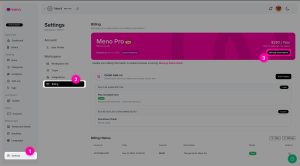
To manage payment methods, billing information, shipping information, or subscription changes, go to Settings → Billing and select Manage Subscription. This opens the Stripe Customer Portal.
Depending on the Stripe configuration, the portal can be used to manage:
- Payment methods
- Billing information
- Shipping information
- Subscription changes or upgrades
- Cancellation
- Billing and invoice history
The Billing page also shows your current plan, billing cycle, renewal date, outlet add-ons, and billing history. Billing History lists issued invoices or transactions with their date, amount, description or status, and an invoice download action when available.
Billing access
Billing is available to the workspace Owner. It is hidden or restricted for Admins and lower roles. If you need to update billing or shipping information but cannot access the Billing page, the workspace Owner must complete the change.