
Only the current Owner can transfer a workspace to another person. A transfer changes ownership immediately: the selected team member becomes the Owner, and the previous Owner immediately leaves the workspace. Confirm the recipient and payment-method requirements before you proceed.
Ownership is not changed through the normal role-editing controls in Settings → Team. It is managed through the ownership-transfer action in User Profile.
Before you start
The intended new Owner must already be a member of the workspace. If no other team member belongs to the workspace, invite one first. An invitation by itself is not enough; the recipient must already belong to the workspace before the transfer can be completed.
You can manage team members and invitations in Settings → Team if you are an Owner or Admin. However, the transfer itself must be completed by the current Owner.
User Profile is an account-level page across workspaces. It shows your profile, the workspaces you belong to, your role in each workspace, and workspace actions available for that role. Use the action for the relevant workspace to begin the transfer.
Review payment methods
The transfer flow shows the workspace payment methods. Review them before selecting the new Owner. You may remove payment methods in this flow, but at least one payment method must remain and a default payment method must exist.
This review is important because the Owner has full workspace control, including Billing. An Admin has broad workspace management access, but cannot access the Billing page or perform billing actions reserved for the Owner. After the transfer, the selected team member receives Owner access, including Billing.
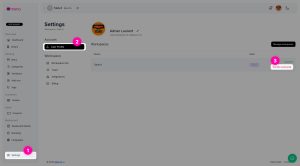
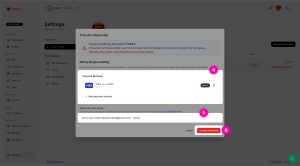
Transfer ownership
- Open User Profile and locate the workspace you want to transfer.
- Start the ownership-transfer action.
- Review the workspace payment methods. If you remove a method, ensure that at least one method remains and that a default method is set.
- Select the existing team member who will become the new Owner.
- Confirm the transfer.
What happens after confirmation
The transfer takes effect immediately. The selected team member becomes the workspace Owner and has full workspace control, including Billing. The former Owner immediately leaves the workspace and no longer belongs to it.
This outcome is different from changing a team member’s role. Owner is not an available normal role-editing choice; it is assigned through the ownership-transfer process. Review the recipient and payment-method requirements carefully before confirmation, because the former Owner loses access as soon as the transfer is completed.