
Use an outlet’s status to control whether its customer-facing experience is available. Disabling an outlet is different from setting it as closed through opening hours: a disabled outlet does not show the normal outlet experience at all.
Enable or disable an outlet
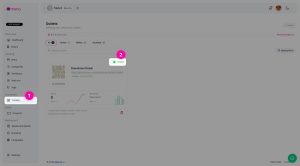
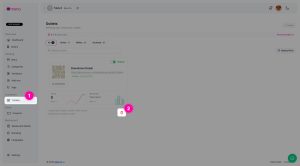
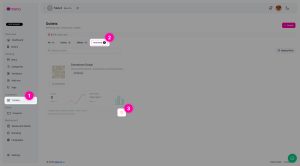
From the MENO dashboard, go to Locations and select Outlets. Open the outlet you need to manage and use its available status control to enable or disable it.
When an outlet is enabled, its customer-facing link and QR code can open the outlet’s normal experience. Customer access still depends on other settings, including the workspace state and the outlet’s opening hours.
When you disable an outlet, MENO does not render its normal customer-facing experience. Instead, anyone opening the outlet’s normal link sees a dedicated Outlet Disabled page. This makes disabling suitable when the branch or customer-facing endpoint should not be available.
Disabled is not the same as closed
Do not use Disable simply to reflect normal non-operating hours. An enabled outlet that is currently closed according to its configured timezone and opening hours continues to show the normal customer flow. Customers can browse its menus and add items to the cart, but they cannot complete checkout or place an order while the outlet is closed.
Use the outlet’s opening hours and timezone for a regular schedule. Use Disable when you need to replace the customer experience with the Outlet Disabled page.
Archive and restore are not confirmed in the current product reference
The current canonical MENO knowledge base confirms the enabled and disabled outlet states described above. It does not confirm an archive action, a restore action, or their effects on outlet seats, data, editing, customer links, QR codes, or customer access.
For that reason, this article does not treat archive or restore as current MENO functionality. If customers must not see the normal outlet experience, use the confirmed Disable control. Any archive or restore workflow should be documented only after its behavior has been explicitly confirmed.
Check customer availability after a status change
After enabling or disabling an outlet, open its customer-facing link or scan its QR code to verify the expected result. An active outlet has its own customer-facing link and QR code. If it is disabled, that link should show the Outlet Disabled page rather than the normal outlet experience.
If an outlet is enabled but customers cannot place orders, check whether it is currently closed under its configured opening hours and timezone. Also note that a workspace in the free state has unavailable customer-facing links, regardless of individual outlet configuration.